
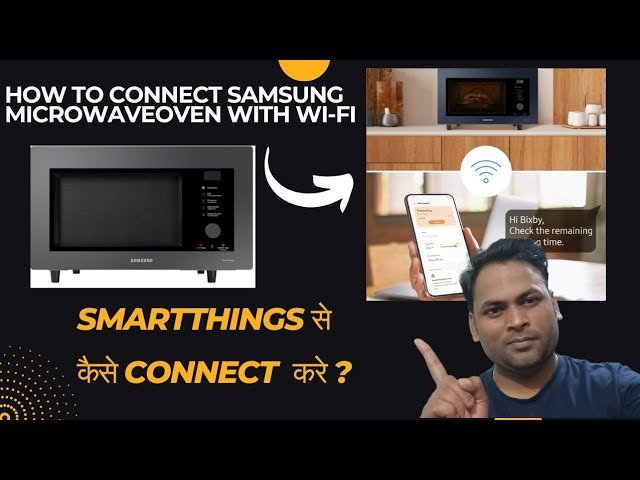
Imagine coming home after a long day, and with just a few taps on your smartphone, your dinner is already cooking in your smart microwave. Sounds convenient, right?
Smart microwaves are revolutionizing the way we prepare meals, offering unparalleled ease and time-saving features. But to unlock these benefits, you need to connect your smart microwave to WiFi. If you’ve ever struggled with tech setup or felt overwhelmed by tech jargon, you’re not alone.
This guide will walk you through each step, ensuring a smooth and stress-free connection. By the end, you’ll have more control over your kitchen than ever before. Ready to transform your cooking experience? Let’s get started.

Credit: www.amazon.com
Benefits Of A Smart Microwave
Smart microwaves offer many great features. They can be controlled with a smartphone. This makes cooking easier and faster. You can set the microwave to start cooking at a specific time. This way, your food is ready when you need it.
These microwaves often have preset cooking modes. These modes help cook food perfectly. You can also get notifications on your phone. These alerts tell you when your food is done. This helps prevent overcooking.
Smart microwaves are energy-efficient. They use less power than old microwaves. This helps save on electricity bills. Connecting them to WiFi is easy. It just takes a few simple steps.
Preparing For Setup
Ensure your smart microwave is compatible with your home’s wifi. Some models only work with certain wifi standards. Check the manual or product box for this information. Older routers may not support newer microwaves. Confirm compatibility before starting.
Get your wifi password ready. You will need it during the setup. Have a smartphone or tablet nearby. This helps with the installation process. Ensure your device is charged. You might also need a screwdriver if adjustments are needed. Keep these tools close for a smooth process.
Connecting To Wifi
Press the menu buttonon the microwave. Look for the settingsoption. Tap it to open the settings menu. Find the wifi settingsoption. Tap to start.
Look for the available networkslist. Find your home’s network name. Tap the network name to select it. Make sure to choose the right network.
Type the wifi passwordcarefully. Check each letter and number. Make sure there are no mistakes. Tap connectafter entering the password. Wait for the connection.
Troubleshooting Connection Issues
Connecting your smart microwave to WiFi can sometimes be tricky. Ensure your WiFi signal is strong and consistent. Follow the microwave’s manual instructions carefully. If issues persist, try resetting the router and microwave.
Common Problems
Smart microwaves often face connection problems. The microwave might not find the network. Check if the WiFi signalis strong. Weak signals cause connection failures. Ensure the microwave is close to the router. Check if the WiFi passwordis correct. Wrong passwords prevent connection. Make sure the microwave is compatible with your router. Some microwaves only support certain WiFi bands. Check if your microwave supports your network type.
Resetting Wifi Settings
Resetting can solve many issues. First, find the reset buttonon the microwave. Press and hold it for a few seconds. This action will reset the WiFi settings. After resetting, reconnect to your network. Enter the correct password. Ensure the network namematches your router. This step is crucial for a stable connection. Resetting helps fix connection errors quickly. It’s a simple yet effective solution.
Enhancing Your Smart Microwave Experience
Smart microwaves have special apps. These apps help you control your microwave. Adjust settings with just a tap. Set cooking time easily. You can also see recipes. Try new dishes with step-by-step guides. Monitor cooking progress from your phone. Get alerts when food is ready. This makes cooking fun. You can save favorite settings too. This saves time for future cooking.
Use your voice to control the microwave. Voice commands make cooking easy. Just say what you want. Start or stop cooking with a simple command. Change the power level with your voice. No need to press buttons. Hands-free cooking is possible. It is perfect for busy times. Be careful with commands. Speak clearly for best results.

Credit: www.airportappliance.com

Credit: www.airportappliance.com
Frequently Asked Questions
How To Connect Smartthings Microwave?
Download the SmartThings app. Open the app and select “Add Device. ” Choose your microwave model. Follow on-screen instructions to connect. Ensure Wi-Fi is enabled. Once connected, control your microwave via the app.
How To Connect Smart Devices To Wifi?
Ensure your device is on. Access WiFi settings. Choose the correct network. Enter the password. Confirm connection.
How Do I Connect My Ge Smart Range To Wifi?
To connect your GE smart range to WiFi, press the “Remote Enable” button on the control panel. Download the SmartHQ app on your smartphone, create an account, and follow the app’s instructions to complete the setup. Ensure your WiFi network is compatible and the range is within signal reach.
How To Connect Amazon Microwave To Wifi?
Press the “WiFi/Connect” button on the microwave’s panel. Open the Alexa app, go to “Devices”, select your microwave, and follow prompts to connect to WiFi. Ensure your router is on 2. 4GHz frequency for compatibility.
Conclusion
Connecting your smart microwave to WiFi is simple. Just follow these steps. First, ensure your WiFi is active. Then, access the microwave settings. Find the WiFi option. Enter your network details. Wait for the connection confirmation. Now, your microwave is smart and ready.
You can control it with your phone. Cooking becomes easier and more efficient. Enjoy the convenience of modern technology. A smart kitchen awaits you.