
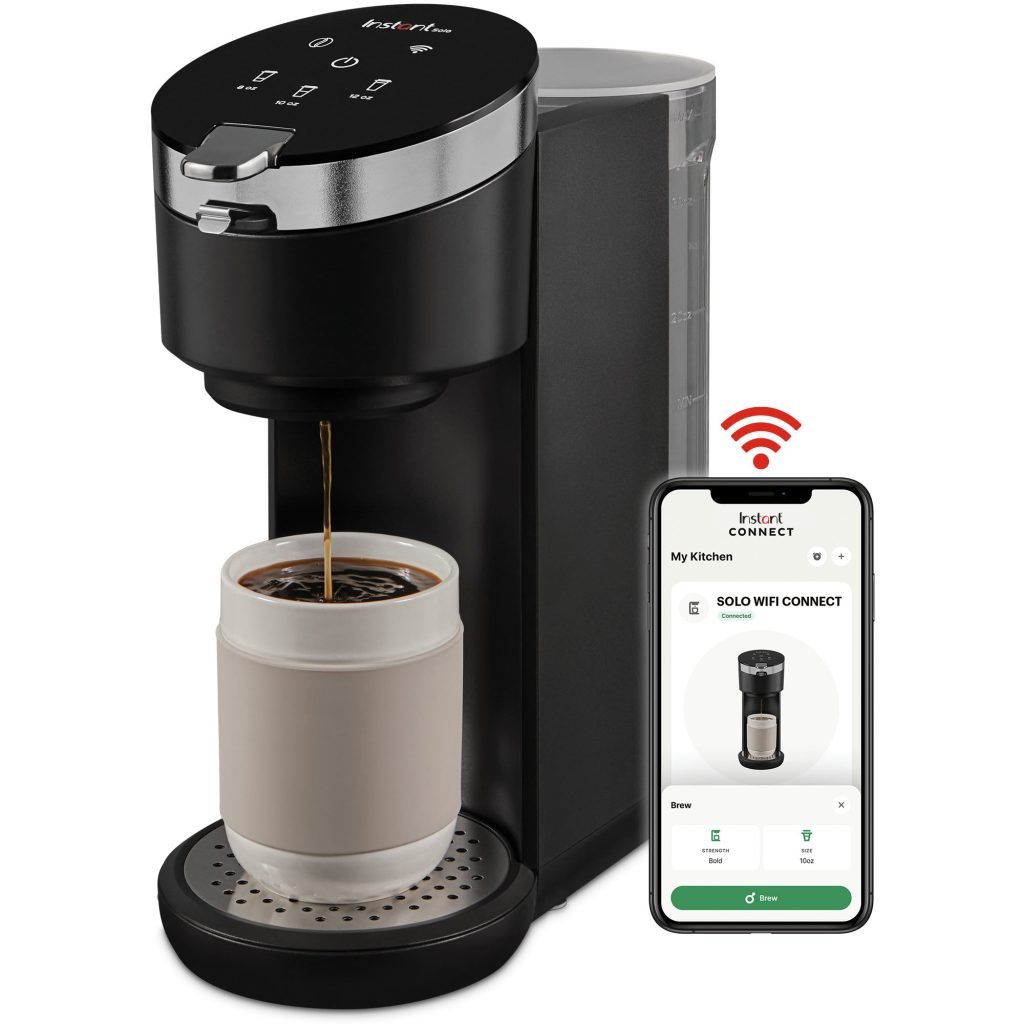
Imagine waking up to the perfect cup of coffee, brewed just the way you like it, without even lifting a finger. Sounds like a dream, right?
With the latest tech advancements, your morning routine can be revolutionized by simply connecting your coffee maker to WiFi. This isn’t just about convenience; it’s about enhancing your daily ritual and giving you more time to enjoy the little things that matter.
Whether you’re rushing out the door or savoring a leisurely morning, a WiFi-enabled coffee maker ensures your coffee is ready when you are. Curious about how to set it up? By the end of this article, you’ll not only master the connection process but also unlock a new level of efficiency and joy in your mornings. So, let’s dive in and transform your coffee experience into something extraordinary!
Choosing A Compatible Coffee Maker
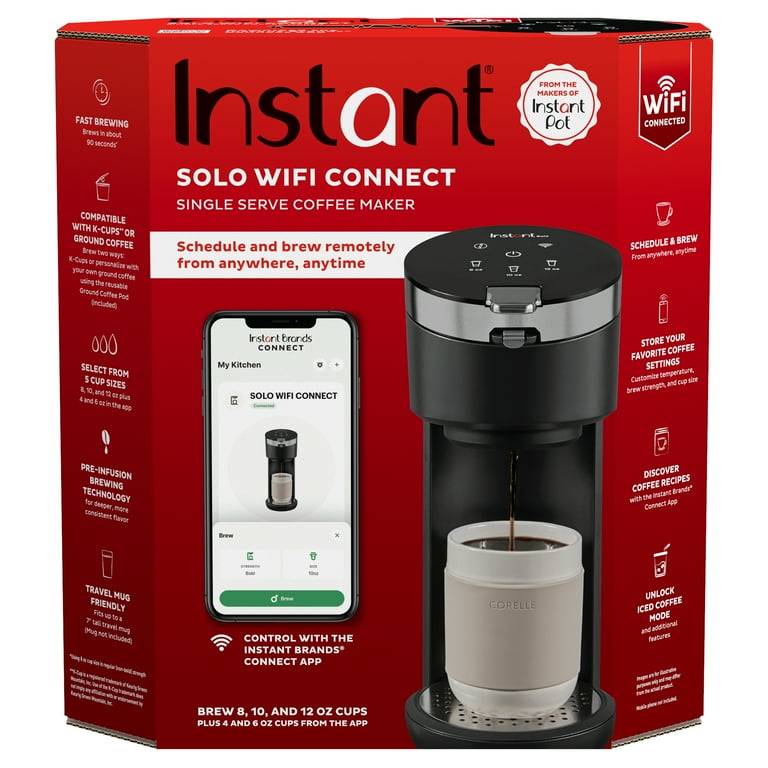
Many coffee makers now come with smart features. Wi-Fi connectivity allows remote control. Some models have voice commands. Others offer scheduled brewing. These features make life easier.
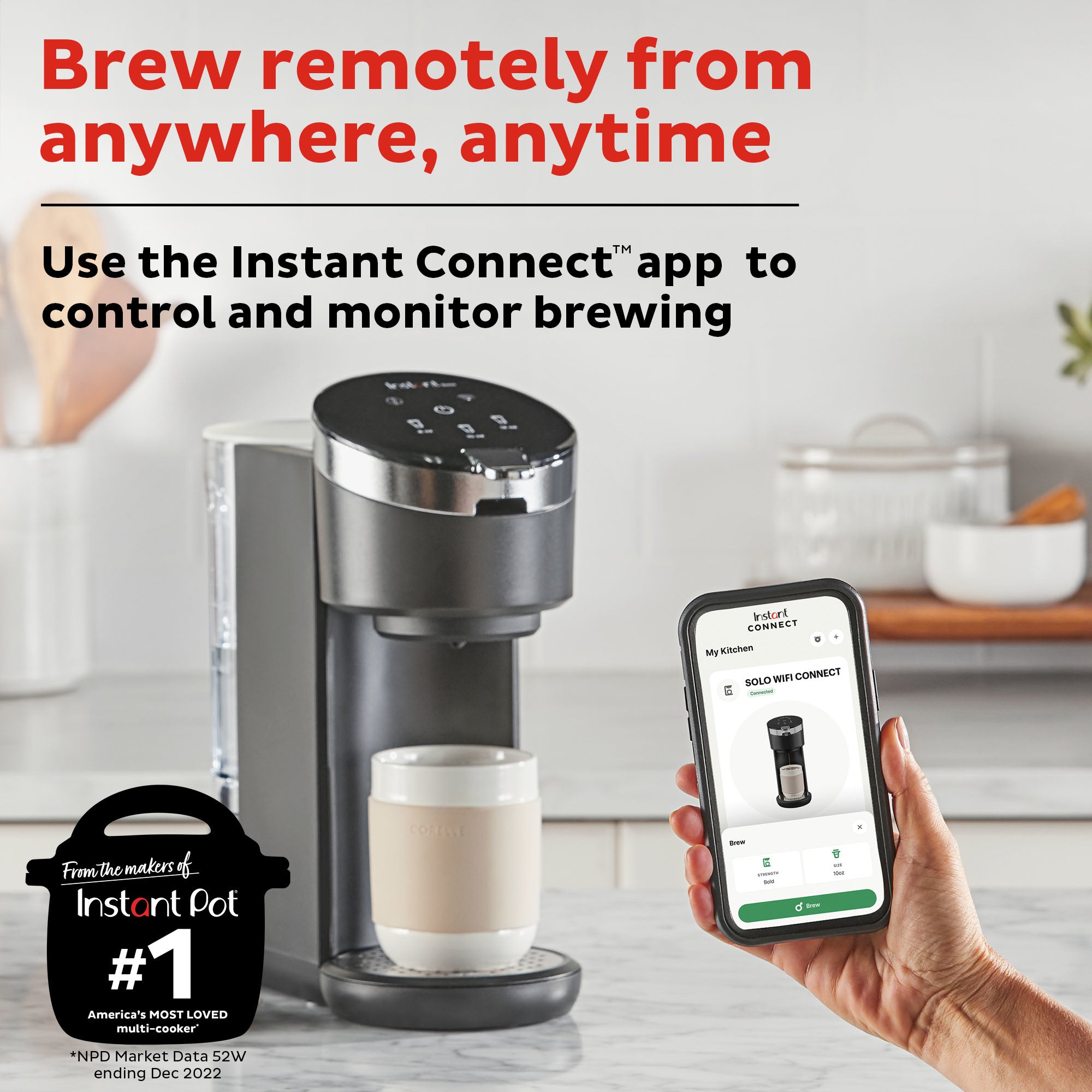
Many people like the app integration. With a mobile app, you can start brewing from anywhere. Some smart coffee makers also have temperature control. This ensures your coffee is just right.
Not all coffee makers work with all brands. Check compatibility before buying. Some brands offer better support. Others may have limited features. It’s important to know which brands work well together.
Look for brands that have good reviews. Customer feedback can be very helpful. Some brands are known for durability. Others might be more user-friendly. Choose a brand that suits your needs.
Setting Up The Coffee Maker
Carefully open the box. Check all parts of the coffee maker. Ensure everything is intact. Look for the manual and warranty card. Keep them safe. Inspect the coffee maker for any scratches or damage. Make sure it looks new and clean. Find the power cord and plug. Check they are not frayed. This ensures safe use. If any part is missing, contact the store immediately.
Choose a spot near the router. This helps with strong signals. Avoid placing it near metal objects. They block signals. Keep it away from microwaves. They interfere with wifi. Ensure it is on a flat surface. This prevents spills. Connect the power cord to a nearby socket. Check the wifi indicator lights up. If it doesn’t, move it closer to the router.
Connecting To Wifi
Your network must be strong. Check the signal strength. Make sure your router is on. Keep your coffee maker near the router. It helps the signal. Ensure your network is secure. Use a password-protected network. It keeps your coffee maker safe. Avoid public networks. They are not secure.
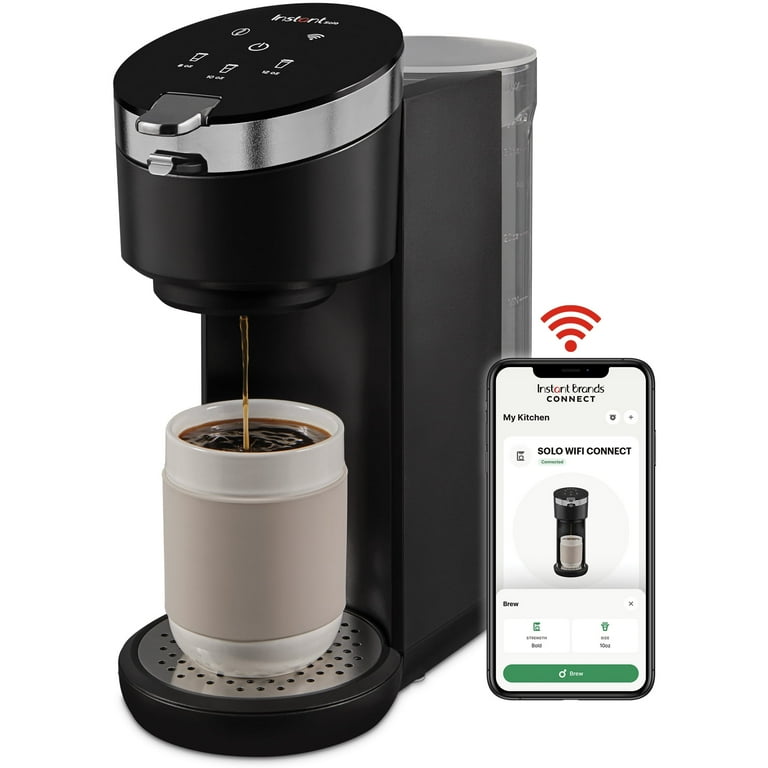
Find the settings button. It is on the coffee maker. Press it to open settings. Look for the wifi option. Select it to begin. Follow the instructions on the screen. The display will guide you. Use the manual if needed. It helps with steps.
Enter your wifi name. It is called SSID. Enter your wifi passwordnext. Make sure it is correct. Double-check your spelling. The coffee maker will connect. Wait for the confirmation message. Enjoy your connected coffee maker.
Credit: www.walmart.com
Using The Coffee Maker App
Find the app in your phone’s app store. Search for the coffee maker’s brand. Tap download. Wait until the app installs. Open the app once it’s ready.
Turn on the coffee maker. Ensure WiFi is active. Go to the app on your phone. Select pair device option. Follow the instructions. The app will guide you.
Open the app after pairing. See different buttons and options. Set your brew time. Choose coffee strength. Customize settings. Check the status anytime.
Troubleshooting Connectivity Issues
Connecting your coffee maker to WiFi can seem tricky, but a few simple steps can help. Ensure your device is within range of your router and double-check your network settings. Restart both the coffee maker and your router if needed to establish a stable connection.
Common Wifi Problems
Wifi signalcan be weak or lost. The coffee maker might be too far from the router. Walls and doors can block signals. Check if other devices are connecting well. If not, the router might need a restart. Ensure the coffee maker is in range. Move it closer to the router if needed.
Resetting The Connection
Resetting helpsfix many issues. Unplug the coffee maker. Wait for 10 seconds, then plug it back. Check if the wifi is working now. If not, go to the settings on the coffee maker. Find the reset option. This often solves wifi problems. Follow the instructions on the screen.
Customer Support Options
Customer supportcan be useful. Find the coffee maker’s manual. Look for contact numbers or email addresses. Call them for help. They might guide you step-by-step. They know common issues and solutions. Always keep the model number ready. This helps them assist you better.
Maximizing Smart Features
Set your coffee maker to brew at the perfect time. Use your phone to schedule when you want your coffee. This way, your coffee is ready when you wake up. No more waiting in the morning. It’s like having a personal coffee helper. Set it once and relax.
Choose how you want your coffee. Strong or light? Hot or warm? Use the app to customize these settings. Save your favorite coffee style. Every cup can be just the way you like it. Enjoy your perfect cup every time.
Connect your coffee maker with other smart devices. Use your voice to start the coffee machine. Link it with systems like Alexa or Google Home. This makes it easy to have coffee while doing other things. Smart home integration brings everything together.
Security And Privacy Considerations
Securing your networkis very important. Always change the default WiFi password. Use a strong and unique password. This makes it hard for others to access your network. Make sure your router has the latest updates. Updates fix security problems. Enable a firewall on your router. This helps block unwanted access.
Understanding data use is key. Coffee makers can collect data. They track usage and preferences. This data helps improve your experience. But it’s important to know who sees your data. Check the privacy policy of your coffee maker. See how your data is shared or stored. You can also turn off data sharing if you prefer. Keep your data safe and private.
Credit: instantpot.com
Maintaining Your Coffee Maker
Keep your coffee maker clean for the best taste. Always wash the carafe and filter basket with warm, soapy water. Use a soft cloth to wipe the machine’s surface. Once a month, run a brew cycle with water and vinegar. This helps remove any built-up minerals. Rinse with clean water to remove the vinegar smell. Never forget to dry all parts thoroughly before using again. This prevents mold and bacteria from growing.
Check for software updates often. These updates help your machine run smoothly. Connect the coffee maker to your WiFi. Follow the instructions on the app. Updates can fix bugs and improve functions. Always keep your machine’s software up-to-date. This ensures the best performance. Read the manual for specific update instructions. Keeping the software updated is as important as cleaning. Both steps help maintain the coffee maker in good condition.
Credit: www.walmart.com
Frequently Asked Questions
How To Connect Keurig To Wi-fi?
Connect your Keurig to Wi-Fi by accessing the settings menu. Select “Wi-Fi” and choose your network. Enter the password using the keypad. Confirm the connection, and your Keurig will connect to Wi-Fi. Ensure your machine is compatible with the Wi-Fi feature before proceeding.
Do Coffee Machines Connect To Wi-fi?
Yes, some coffee machines connect to Wi-Fi. They allow remote control through smartphone apps for brewing convenience. Wi-Fi-enabled models can update software and access new features. This connectivity enhances user experience with scheduling and customization options. Always check specifications to ensure your coffee machine supports Wi-Fi.
How To Connect A Café Coffee Maker To Wi-fi?
Ensure the café coffee maker is compatible with Wi-Fi. Open the manufacturer’s app on your smartphone. Follow the on-screen instructions to connect the coffee maker to Wi-Fi. Ensure both devices are on the same network. Once connected, you can control the coffee maker through the app.
How To Connect To Wi-fi In Starbucks?
Connect to Starbucks Wi-Fi by selecting “Google Starbucks” on your device’s Wi-Fi settings. Open a browser and accept the terms to connect. Enjoy browsing!
Conclusion
Connecting your coffee maker to WiFi is simple. Follow each step carefully. Enjoy the convenience of remote control. Start brewing from anywhere. Troubleshooting tips help resolve common issues. WiFi features enhance your coffee experience. Adjust settings effortlessly. Save time in your daily routine.
Perfect coffee awaits at a touch. Embrace technology in your kitchen. Make mornings smoother and more enjoyable. A small adjustment makes a big difference. Your coffee ritual just got better. Happy brewing!