
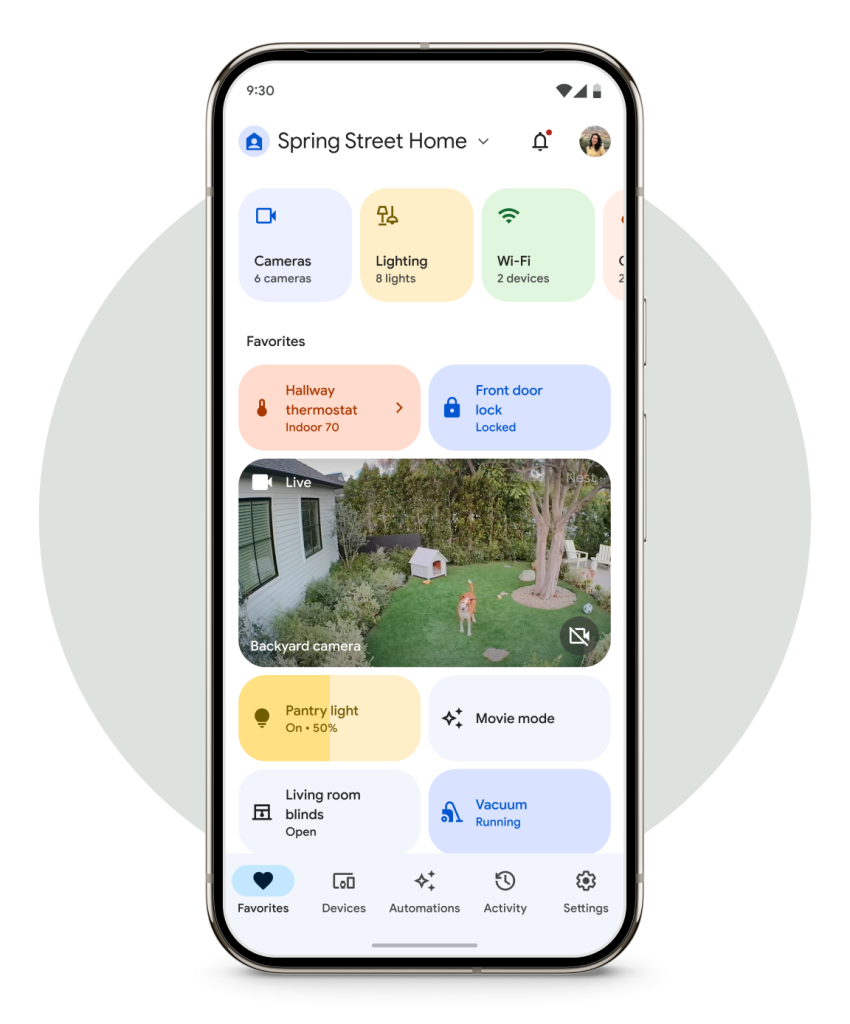
Imagine walking into your home, and with just a simple voice command, your lights dim, your favorite music plays, and the thermostat adjusts to your preferred temperature. This isn’t a scene from a futuristic movie—it’s the reality of living with smart gadgets connected to Google Home.
You might wonder how to make this magic happen in your home. What if we told you it’s easier than you think? In this guide, you’ll discover how to seamlessly connect your smart devices to Google Home, transforming your living space into a hub of convenience and efficiency.
Stick around, and we’ll show you step-by-step how to simplify your life and maximize the potential of your smart gadgets. Ready to unlock a smarter home? Let’s dive in!

Credit: developers.home.google.com
Setting Up Google Home
Connecting smart gadgets to Google Home is simple. Start by downloading the Google Home app on your phone. Follow the app instructions to add devices like smart lights or thermostats. Enjoy voice control and automation through Google Assistant.
Downloading The Google Home App
First, find the Google Home Appin your app store. Tap to download it. Wait for it to finish downloading. Open the app after it installs. The app helps you connect gadgets to Google Home. Make sure your phone is on Wi-Fi.
Creating A Google Account
Sign up for a Google Account. Open the Google Home App. Tap “Create Account”. Enter your name, email, and password. Follow the steps. Your account is ready. Now, you can link gadgets.
Connecting Google Home Device
Plug in your Google Home Device. Wait until it lights up. Open the Google Home App. Tap “Add Device”. Follow the app steps. Connect to your Wi-Fi. Your device links with Google Home. Now you can use it.
Preparing Your Smart Gadgets
Check if your gadget works with Google Home. Read the box or manual. Use online tools to confirm this. Compatibility helps gadgets talk to Google Home.
Make sure your device has the latest firmware. Old firmware can cause problems. Find update options in device settings. Updates fix bugs and add features.
Place your gadget in a central location. Avoid walls and corners. This helps Google Home connect easily. Good positioning gives a strong signal.
Connecting Smart Gadgets
Open the Google Home Appon your phone. Tap the plus iconto add a device. Choose your gadget type and follow the steps. Make sure your gadget is on the same Wi-Fi networkas Google Home. Check that your phone is connected too. Confirm the connection by tapping Yesor Nextwhen prompted.
Start by visiting the home screenof the app. Tap on the device you want to add. Follow the instructions on the screen. Make sure to name your device. This helps you find it later. Confirm the addition by pressing Finish.
Open the app and tap Settings. Select Voice Matchto link your voice. Follow the steps to train Google Home. Speak clearly during setup. This helps Google understand you better. Test by saying simple commands. If it works, you’re all set!
Troubleshooting Connection Issues
Connecting smart gadgets to Google Home can streamline your daily routine. Ensure your devices are compatible with Google Home and follow the setup instructions. Troubleshoot connectivity issues by checking Wi-Fi settings and ensuring your Google Home app is updated.
Checking Wi-fi Connectivity
Ensure your Wi-Fi is stableand strong. Smart gadgets need good Wi-Fi. Check if other devices connect fine. Move closer to the router if needed. Disconnect other gadgets using Wi-Fi.
Ensuring Proper Configuration
Review gadget settings. Confirm gadget and Google Home are on the same network. Verify device firmware is up-to-date. Look for any configuration steps missed.
Resetting Devices
Sometimes gadgets need a reset. Turn off the gadget. Wait a minute, then turn it back on. Press the reset button if available. Follow gadget instructions for a reset.
Optimizing Device Performance
Connecting smart gadgets to Google Home enhances device performance, making daily tasks simpler. Use the Google Home app to link devices, ensuring seamless integration and control. This setup allows voice commands to manage lights, thermostats, and more, offering a convenient smart home experience.
Creating Routines
Routines help smart devices work better together. Start by choosing tasks you do every day. For example, turn on lights and play music in the morning. Google Home can do these tasks with one command. This saves time and makes life easier.
Grouping Devices
Grouping devices is another way to improve performance. Put similar gadgets in one group. For instance, all lights in the living room. This way, you control them all at once. It simplifies commands and makes managing devices easier.
Customizing Voice Commands
Customizing voice commands allows for easier control. Use simple words to activate routines. Change commands to what you say often. Make commands fit your style. This helps Google Home understand better and respond faster.
Exploring Advanced Features
Many apps work with Google Home. You can connect apps like Spotify. This allows you to play music with your voice. Smart gadgets become more useful this way. Check app settings for linking options. It is easy and fun to use.
Google Assistant has many skills. You can add new skills easily. Skills help Google Home do more things. Find skills in the Google Home app. Activate them with a few taps. Skills make your device smarter.
Voice Match helps Google Home know your voice. This feature lets it give you personal responses. Set it up in the app. Follow the steps to teach it your voice. Now Google Home can call you by name. It knows who is speaking.
Maintaining Smart Home Security
A strong Wi-Fi password is important. Make it long and unique. Use numbers, letters, and symbols. Avoid using common words. Change your password regularly for better security. Ensure your router uses WPA3 encryption. It’s the safest option available.
Check which apps can access your devices. Limit access to only necessary apps. Review permissions often. Be cautious with new apps. Check their reviews. Uninstall apps you don’t use. Keep your device settings private.
Smart gadgets need updates. Updates fix bugs and add features. Set devices to auto-update if possible. This keeps them secure. Check for updates monthly. Sometimes updates are urgent. Install them right away.

Credit: www.youtube.com

Credit: home.google.com
Frequently Asked Questions
How To Connect Smart Devices To Google Home?
Open the Google Home app on your phone. Tap “+” to add a device. Choose your smart device brand. Follow on-screen instructions to connect. Ensure your devices and Google Home are on the same Wi-Fi network. Once connected, control devices via voice or app.
How To Link Google Home And Smartthings?
Open the Google Home app, tap “Add,” select “Set up device,” choose “Works with Google,” and find SmartThings. Log in to your SmartThings account to link.
How To Connect Smart Life Devices To Google Home?
Open the Google Home app and tap the “+” icon. Select “Set up device” and choose “Works with Google. ” Search for “Smart Life” and log in to your account. Authorize the connection, and your Smart Life devices will sync with Google Home.
Why Can’t Google Home Find My Devices?
Ensure devices are on the same Wi-Fi network as Google Home. Check device compatibility and update the Google Home app. Reboot your devices and router to resolve connectivity issues. Verify that Bluetooth is enabled for pairing.
Conclusion
Connecting smart gadgets to Google Home is straightforward and rewarding. First, ensure your devices are compatible. Use the Google Home app to link them seamlessly. This allows you to control gadgets with voice commands. Enjoy hands-free convenience in your daily routine.
Troubleshoot any issues using the app’s guide. Remember, patience helps during setup. Practice makes it easier over time. Soon, your home will respond to your voice. Experience the modern way of living. Embrace technology’s benefits. Your connected home awaits, ready to simplify life.
Start exploring the possibilities today. Enjoy the comfort and ease.