
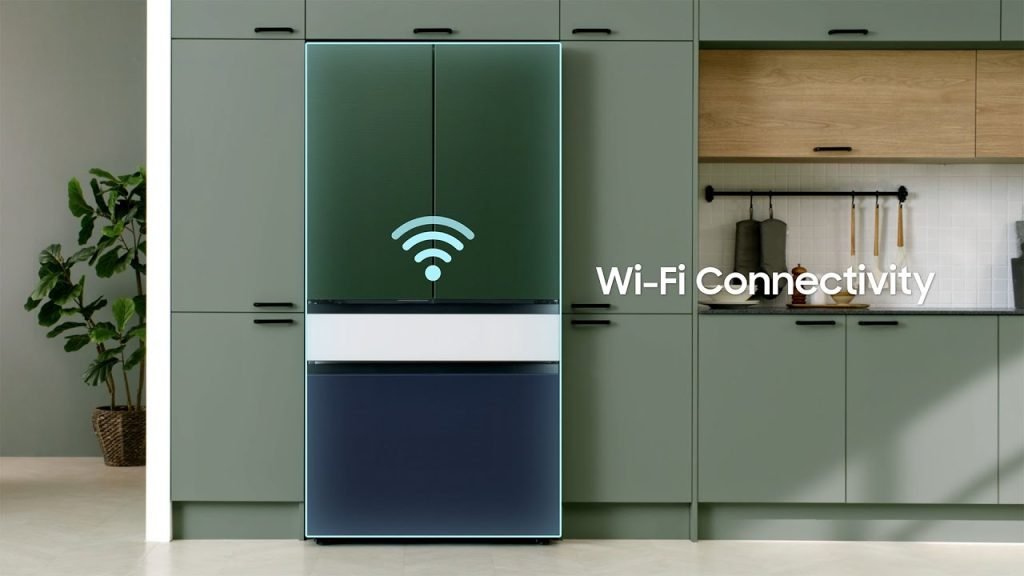
Have you ever wished your fridge could do more than just keep your food fresh? Imagine it sending you reminders about expiration dates or letting you know when you’re out of milk, all from the convenience of your smartphone.
If this sounds like something you’d love, you’re in the right place. Connecting your smart fridge to WiFi can transform your kitchen experience, making it more efficient and enjoyable. In this guide, we’ll walk you through the simple steps to get your smart fridge online.
By the end, you’ll unlock a new world of convenience right at your fingertips. Ready to upgrade your kitchen game? Let’s dive in!
Benefits Of Connecting Your Smart Fridge To Wifi
Connecting your smart fridge to wifibrings many benefits. It helps you track food easily. You can check what’s inside without opening the door. This saves energy and keeps food fresh. Your fridge can send alerts to your phone. It tells you if the door is left open. Or if the temperature changes. You can controlsettings from anywhere. Adjust temperature and settings remotely. This makes life simpler and saves time.
You can get recipes based on what’s inside. It suggests meals using what you have. This reduces waste and saves money. Updates for your fridge happen automatically. New features and improvements come straight to it. Your fridge becomes smarter every day. Connect it to wifi and enjoy these benefits.
Credit: www.samsung.com
Preparing Your Smart Fridge
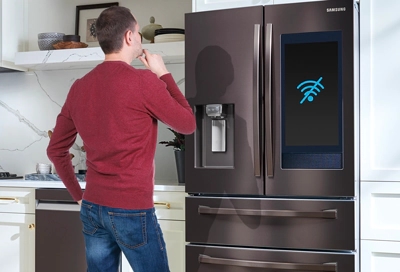
First, ensure the fridge is compatible with your WiFi network. Look for a WiFi symbol on the fridge. Check the manual for details. Some fridges only work with specific routers. Make sure your router is on the list.
Collect the WiFi password and network name. Keep them nearby. You’ll need these to connect. Also, find the fridge’s settings menu. This is where you’ll enter the WiFi details. Make sure the router is nearby. A strong signal is important. Check if any updates are needed. Some fridges need updates before connecting. Have a smartphone ready. It helps in setting up the fridge.
Connecting To Wifi Network
Smart fridges have a settings menu. This menu is usually on the screen. First, go to the menu on your fridge. Look for settings.
Find the Wifi option in settings. This may be called network or internet. Choose the option to select a network. This will show nearby Wifi networks.
Pick your home Wifi network from the list. You may need to scroll to find it. Once selected, the fridge will ask for a password.
Enter your Wifi password carefully. Make sure each letter and number is correct. Press connect or join after entering the password.
After connecting, your fridge should say connected. If not, check the password and try again.

Credit: www.samsung.com
Troubleshooting Connection Issues
Connecting your smart fridge to WiFi can sometimes be tricky. First, ensure your router is nearby for a strong signal. Then, access the fridge’s settings and select your network, entering the password carefully. If issues persist, restarting both devices often helps.
Reboot The Fridge
To fix connection issues, try to reboot your smart fridge. Unplug the fridge from the power source. Wait for 30 seconds. Then, plug it back in. This can solve many small problems. Ensure the fridge is powered on properly. Check the display for any connection alerts. If problems persist, try checking other solutions.
Check Wifi Signal
Make sure your WiFi signal is strong near the fridge. Weak signals cause connection drops. Move the router closer if needed. Remove any objects blocking the signal. Check other devices to see if they connect well. This helps ensure the WiFi is working fine.
Update Firmware
Firmware updates can fix bugs and improve connections. Check the fridge’s app or settings for updates. Follow the instructions to update. Make sure the fridge stays connected to power during updates. This ensures the update completes successfully. After updating, try connecting to WiFi again.
Ensuring A Stable Connection
Position Your Routerclose to your smart fridge. This helps in getting a strong signal. Walls and objects block the signal. Avoid placing the router in a corner. Try keeping it at a central spot. This is important for a good connection.
Use Wifi Extendersto improve the signal. These devices can boost the range. They help in reaching areas with weak signals. Place extenders between your router and fridge. This will help in maintaining a stable connection. Extenders are easy to set up. Follow the instructions for best results.

Credit: www.youtube.com
Enhancing Your Smart Fridge Experience
Smart fridges offer many cool features. They can tell you what’s inside without opening the door. They even suggest recipes based on available items. These fridges also send alerts. You will know if a door is left open. Some models allow you to create shopping lists. All from your fridge’s screen. It is like having a kitchen helper at home.
Connecting your smart fridge to a smart home system is easy. It lets your devices work together. You can control the fridge with your phone. Check food items or get alerts. Smart home integration makes life easier. You can even link it to voice assistants. Just ask about your food. No need to open the fridge.
Frequently Asked Questions
How To Connect Refrigerator To Wi-fi?
Ensure the refrigerator has Wi-Fi capability. Access its settings menu, select Wi-Fi, and enter your network details. Follow prompts to connect successfully. Check the refrigerator manual for specific instructions if needed.
How To Connect Samsung Smart Fridge To Wi-fi?
To connect your Samsung smart fridge to Wi-Fi, open the fridge menu, select “Wi-Fi,” then “Settings. ” Choose your network, enter the password, and confirm. Ensure a strong Wi-Fi signal for a stable connection.
Does A Smart Fridge Need Wi-fi?
Smart fridges often need Wi-Fi for advanced features like remote management and app connectivity. Basic functions like cooling work without Wi-Fi.
Why Should I Connect My Fridge To Wi-fi?
Connecting your fridge to Wi-Fi offers convenience and control. You can monitor temperatures remotely, get alerts, and manage settings via apps. This smart integration enhances energy efficiency, reduces food waste, and provides quick access to troubleshooting. Enjoy seamless updates and integration with other smart home devices for optimal kitchen management.
Conclusion
Connecting your smart fridge to WiFi is straightforward. Follow the steps carefully. Begin by checking your fridge’s manual. Ensure your router is compatible. Find the WiFi settings on your fridge. Enter the correct network name. Use the password to connect.
Test the connection for success. Troubleshoot if issues arise. Maintain a stable WiFi signal. Enjoy the convenience of remote fridge monitoring. Efficient and easy. No more manual tracking. Optimize your smart fridge experience effortlessly. Now, your kitchen is more connected.
Stay updated with fridge notifications. Happy connecting!