
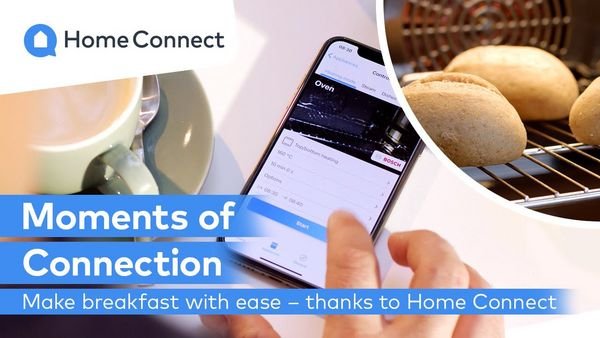
Imagine this: You’re stuck in traffic, but dinner won’t wait. Your family is counting on a hot, delicious meal the moment they step in.
What if you could preheat your oven with just a tap on your smartphone? Welcome to the world of smart homes, where your oven isn’t just an appliance; it’s a part of your high-tech household network. Connecting your oven to your smart home setup can transform your cooking experience, offering convenience, efficiency, and a touch of futuristic flair.
You might wonder, “How exactly do I make this magic happen? ” This article is your step-by-step guide to seamlessly integrate your oven into your smart home ecosystem. By the end, you’ll have the know-how to control your cooking from anywhere, saving you time and making your life easier. Let’s unlock the secrets to a smarter kitchen, one connection at a time.
Choosing A Compatible Smart Oven
Picking the right smart oven is important. Compatibility with your home system matters. Check if the oven works with your Wi-Fi. Ensure it connects with your smart home hub. Look for ovens that support voice control. These can connect with Alexa or Google Assistant. Verify app support for easy control. Not all ovens have the same features. Some ovens may have timers or temperature control. Others might offer recipe suggestions. Read reviews to know what others think. This helps to avoid bad choices. Make sure to compare different brands. Always choose the one that best fits your needs.
Setting Up Wi-fi For Smart Appliances
Connecting your oven to Wi-Fi is easy. First, make sure your oven is ready for smart settings. Check the manual for Wi-Fi instructions. Find the Wi-Fi button on your oven. Press it to start pairing. Use your phone or tablet to connect. Open the app for your smart home system. Select your oven from the list. Enter your Wi-Fi details. Wait for the connection to complete. A light on the oven shows successful pairing.
Always keep your Wi-Fi password safe. Regularly update your app for better performance. Check for firmware updates. This keeps your oven smart and efficient. Troubleshoot if the connection fails. Restart your device if needed. Consult the manual for more help.
Downloading The Necessary Apps
Smart ovens need special apps to work with your home. First, check the brand of your oven. Each brand uses its own app. Find out which app matches your oven. Visit the App Store or Google Play on your phone. Search for your oven’s app by name. Download and install it. Open the app and follow the setup steps. It may ask for your Wi-Fi password. Enter it carefully. Make sure your phone is close to the oven. This helps the connection work better. Read any instructions the app gives. They are there to help you.

Credit: shop.panasonic.com
Creating A User Account
Start by finding the app for your oven. It is usually free. Download it from your phone’s app store. Open the app and look for the sign-up option. You will need an email address and a password. Make sure your password is strong. Write it down so you don’t forget.
Fill in your details in the form. Use your real name and a valid email. After filling, click the submit button. Check your email for a verification link. Click the link to verify your account. Now, your account is ready to use. Always remember to log in with your email and password.
Connecting The Oven To The App
Start by checking if your oven is compatible with smart apps. Read your oven’s manual for details. Some ovens need a special code to connect. Find this code inside the manual or on the oven screen. Download the app on your smartphone or tablet. Ensure your device has enough space for the app. Open the app and create an account. Use a strong password for safety. Follow the app’s steps to connect your oven. Keep your device near the oven during setup. Both oven and device should be on the same Wi-Fi network. If connection fails, restart your app and oven. Try again patiently. Once connected, you can control your oven from your device. Change temperature or set timers easily. Enjoy the convenience of smart cooking!
Configuring Smart Home Integrations
Connect your oven with voice assistants like Alexaor Google Assistant. First, check if your oven supports voice integration. Download the required app on your phone. Follow the instructions to pair your oven. Once linked, you can give simple voice commands. Say, “Alexa, preheat the oven.” Or, “Google, turn off the oven.”
Your oven can talk to other smart devices. Use a smart hub for syncing. A hub helps connect different gadgets. Set it up with your oven and phone. This way, your oven can work with lights and alarms. If the oven is ready, the lights can blink. Or the alarm can sound. This makes cooking easier and fun.
Testing The Connection
Running Initial Diagnosticsis very important. Begin by turning on your oven. Then, check the smart home app on your phone. Look for any connection errors. If you find any, restart your oven. Also, ensure your Wi-Fi is working well. This can solve many problems. If issues persist, consult your oven’s manual. Follow the troubleshooting steps given there.
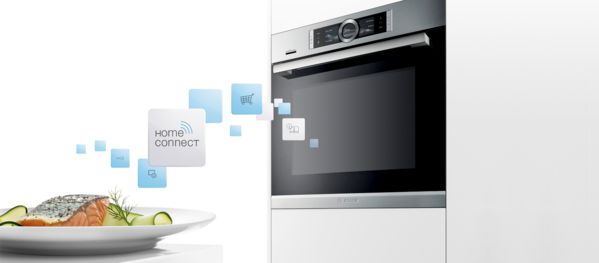
Ensuring Proper Functionalityis the next step. Once the connection is stable, test basic commands. Use your app to turn the oven on and off. Adjust the temperature using the app. Make sure the oven responds well. If the oven doesn’t work correctly, update the app. Sometimes, updating solves many issues. This ensures your oven works smoothly with your smart home.
Credit: www.bosch-home.com
Troubleshooting Common Issues
Connecting your oven to a smart home can be tricky. Check Wi-Fi settings and ensure the oven’s compatibility with your smart system. Restart devices if connection fails, and consult the manual for specific troubleshooting tips.
Wi-fi Connection Problems
Wi-Fi issues are common when connecting your oven. Check your router settings first. Ensure it supports your oven’s frequency. Most ovens use 2.4 GHz networks. Avoid 5 GHz if possible. Place your router close to the oven. Walls and doors can block signals. Try restarting your router. Sometimes this fixes connection problems.
App Connectivity Issues
Apps sometimes fail to connect. Make sure your app is up to date. Check for updates regularly. Turn off other apps running in the background. They can slow connections. Reinstall the app if problems persist. This can fix many bugs. Always check your phone’s settings. Ensure Bluetooth and Wi-Fi are enabled.
Integration Failures
Integrating ovens with smart home systems can be tricky. Ensure your smart home hub supports your oven. Some hubs need specific settings. Check the manufacturer’s website. Follow any setup guides. Restart your hub if integration fails. Sometimes devices need a fresh start. Double-check all connections. Ensure cables are secure and intact.
Enhancing Smart Oven Security
Use a unique password for your smart oven. Avoid using common words. Mix letters, numbers, and symbols. Change passwords every few months. Strong passwords keep your oven safe.
Update your oven’s firmware often. These updates fix bugs and improve security. Check for updates weekly. Keeping firmware current protects your smart oven.
Exploring Advanced Features
Control your oven from far away. Use your phone or tablet. This lets you start cooking while still at work. Forget about waiting for preheating. Adjust the temperature with a tap. Check cooking status in real-time. Receive alerts when the dish is ready. No need to stand by the oven. Enjoy more freedom and save time.
Know how much energy your oven uses. Smart ovens track energy consumption. View reports on your device. This helps in saving electricity. Spot high energy use and reduce it. Smart monitoring helps lower bills. Be aware of eco-friendly cooking choices. Save money while cooking.
Credit: pressroom.geappliances.com
Frequently Asked Questions
How To Connect To A Smart Oven?
Connect to a smart oven by downloading its app on your smartphone. Follow the app’s instructions to pair via Wi-Fi or Bluetooth. Ensure the oven is powered on and Wi-Fi is enabled. Once connected, control settings and monitor cooking remotely through the app.
Check oven’s manual for detailed steps.
How Do I Connect Appliances To Home Connect?
Download the Home Connect app. Create an account and log in. Select ‘Add Appliance’ and follow instructions. Ensure your appliance is Wi-Fi enabled and connected. Verify connection with a test command. Enjoy smart control of your devices.
How Do I Add An Oven To The Smartthings App?
Open the SmartThings app. Tap on “Devices,” then “Add Device. ” Select “Oven” and follow on-screen instructions. Ensure your oven is compatible and connected to Wi-Fi.
How To Add Appliance To Smarthq App?
Open the SmartHQ app. Select “Add Appliance” and follow the on-screen instructions to connect your device. Ensure your appliance is compatible and your phone is connected to Wi-Fi. Once added, control and monitor your appliance through the app.
Conclusion
Connecting your oven to a smart home enhances convenience. It’s simple and efficient. With this setup, control is at your fingertips. No more worrying about leaving the oven on. Use your phone to manage cooking remotely. Adjust settings with ease.
Enjoy the benefits of modern technology in your kitchen. Embrace the comfort and safety of smart devices. Save time and energy while cooking. This integration makes life smoother. Explore smart home options for better living. Start today and enjoy a smarter kitchen experience.
Your home, now more connected and intelligent.