
Imagine effortlessly organizing your groceries, streaming your favorite playlists, or even checking the weather—all from your refrigerator door. Your smart fridge is more than just a place to keep food fresh; it’s the hub of your kitchen’s technology.
But to unlock its full potential, you need to master the touchscreen interface. Are you ready to transform how you interact with your fridge? In this guide, you’ll discover the simple steps to make your smart fridge work for you, from setting up family calendars to managing your grocery lists with just a touch.
Dive in and learn how to make every meal prep smoother and every kitchen moment smarter. Your fridge is smarter than you think—let’s explore how you can make the most of it!
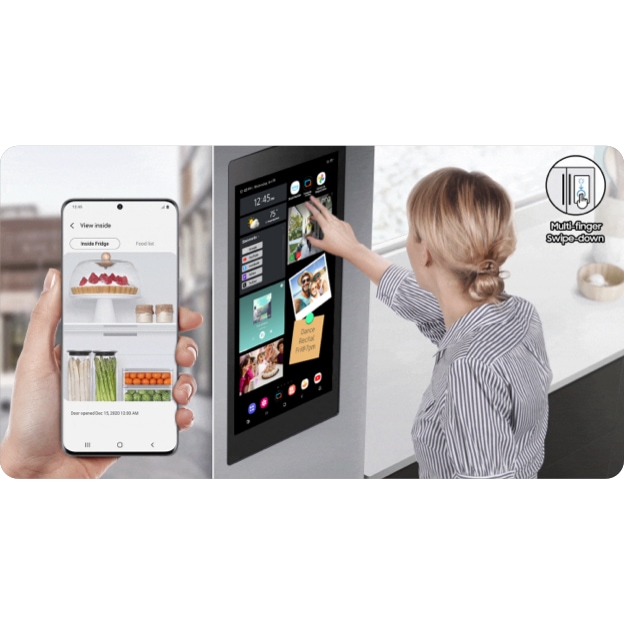
Credit: www.samsung.com
Getting Started With Your Smart Fridge
Begin by unpacking your smart fridge carefully. Remove all packaging materials. Then, move the fridge to its spot in the kitchen. Make sure it is stable and level. Plug the fridge into the outlet. Check if the screen lights up. Follow the on-screen instructions for setup. Set the date and time. This helps the fridge work correctly.
Open the settings menu on the touchscreen. Find the Wi-Fi option. Tap it to search for available networks. Choose your home Wi-Fi network from the list. Enter the password when prompted. Wait for the screen to show a connection success message. Now, your fridge can update software and show weather or recipes.
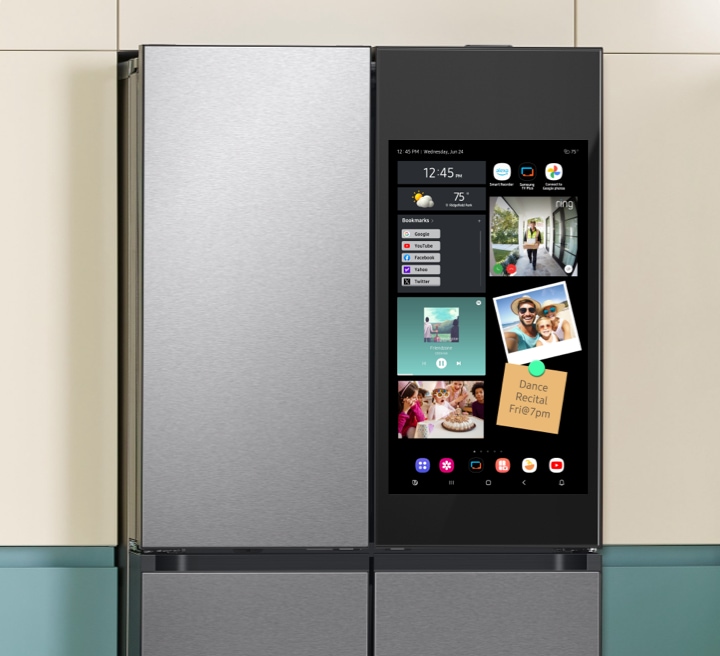
Credit: www.samsung.com
Navigating The Touchscreen Interface
The touchscreen on a smart fridge is easy to use. The home screen shows important features. You can see the time, weather, and temperature. Swipe to view more options. Touch icons to open apps. Settings let you adjust brightness and volume.
Icons are like buttons. Fridge icon helps with cooling. Calendar icon shows dates. Music icon plays tunes. Tap on the camera icon for photos. Each icon has a special job. Learn the icons to use the fridge better.
Customizing Your Experience
Smart fridges have touchscreens. These screens help you set your preferences. You can choose your favorite apps. You can change the screen brightness. Change the language settings too. Make your fridge feel just right for you. Explore the settings menu. Tap and adjust until you are happy.
Multiple people use the fridge. Each person can have a user profile. Start by tapping create profile on the screen. Enter your name. Choose a profile picture. Select your favorite settings. Save your profile. Now your fridge knows you. It remembers your likes. Everyone can have a unique experience.
Credit: www.businessinsider.com
Managing Food Inventory
Smart fridges offer intuitive touchscreen features to manage food inventory effortlessly. Adjust settings, track expiration dates, and organize items with simple taps. Keep your kitchen efficient by using technology to monitor stock and plan meals effectively.
Using The Inventory Tracker
Smart fridges come with an inventory tracker. This tool helps you keep track of food items. You can enter items manually or scan them. The tracker shows what you have inside. This helps you avoid buying things you already own.
Setting Expiry Alerts
Setting expiry alertsis easy. You can add the expiry date when you enter an item. The fridge will remind you before the item goes bad. This helps in reducing food waste. You can plan meals better with this feature. No more guessing about freshness. It keeps your food safe to eat.
Utilizing Smart Features
Smart fridges can listen to your voice commands. You can ask it to show recipes. Or to play your favorite song. It’s like talking to a friend. You can even set timers. This helps when cooking. No need to touch the screen. Just speak, and it listens. This makes life much easier and fun!
A smart fridge can work with other smart devices. It can talk to your smart lights. Or control your smart speakers. You can connect it to your home network. This helps create a smart home. Everything can work together. It feels like magic. But it’s real! You control everything from one place.
Troubleshooting Common Issues
Experiencing touchscreen issues on your smart fridge? Start by cleaning the screen with a soft cloth. Ensure your hands are dry and free from oils. Adjust screen sensitivity in settings if needed.
Touchscreen Sensitivity Problems
Smart fridge touchscreens can be very sensitive. Sometimes, they might not respond well. Clean the screen gently with a soft cloth. Make sure your hands are dry. If it still doesn’t work, check the settings. Adjust the sensitivity levelif possible. Ensure no items are blocking the screen. If problems continue, restart the fridge. This can help reset the screen. Always ensure your fridge software is updated. Updates can fix many touchscreen issues. If nothing works, contact customer support for help.
Connectivity Issues
Smart fridges need to be online. Sometimes, they might lose connection. First, check if your Wi-Fiis working. Restart your router if needed. Make sure the fridge is close enough to the router. Walls can block signals. Try moving the fridge or router closer. Check the fridge’s network settings. Ensure it’s connected to the correct network. If there’s still a problem, reset the network settings. Reconnect the fridge to Wi-Fi. Keep the fridge software updated. Software updates often solve connectivity issues.
Maintenance And Care
Smart fridge touchscreens can get dirty. Fingerprints and smudges build up fast. Use a soft, damp cloth to clean. Avoid using harsh chemicals or abrasive sponges. These can scratch the screen. Wipe gently in a circular motion. Dry with a soft, dry cloth. This keeps the screen clear and bright.
Software updates are important for smart fridges. They fix bugs and improve features. Check the screen for update notifications. Follow the on-screen instructions to update. Ensure your fridge is connected to Wi-Fi. Updates may take a few minutes. Don’t interrupt the process. This keeps the fridge running smoothly.
Frequently Asked Questions
What Does A Touch Screen Refrigerator Do?
A touch screen refrigerator offers digital controls, displays recipes, and manages grocery lists. It enhances user interaction and convenience. You can stream music, watch videos, and access calendars. Energy efficiency is improved through smart settings, optimizing food preservation. This appliance connects to Wi-Fi, integrating seamlessly into smart home systems.
What Does The Screen On The Samsung Fridge Do?
The Samsung fridge screen displays temperature settings, controls, and notifications. It offers food management and connectivity options, enhancing convenience and efficiency.
Why Does The Samsung Fridge Screen Not Touching?
The Samsung fridge screen may not respond due to software glitches, screen calibration issues, or a faulty touch sensor. Restart the fridge, update the software, or recalibrate the screen to resolve this. If the issue persists, contact Samsung support for assistance.
How To Adjust Temperature On Samsung Fridge Touch Screen?
Tap the “Fridge” or “Freezer” button on the touch screen to adjust the temperature. Use the arrow keys to set the desired temperature. Confirm your selection by pressing “OK” or “Set. “
Conclusion
Mastering your smart fridge’s touchscreen is now within reach. Practice makes it easier. Explore all features to get the best use. Stay organized with digital notes and lists. Adjust settings for your family’s needs. Cleaning the screen regularly helps maintain its responsiveness.
Remember, technology is there to simplify life. Enjoy the convenience it brings to your kitchen. With these tips, you can navigate your fridge effortlessly.