
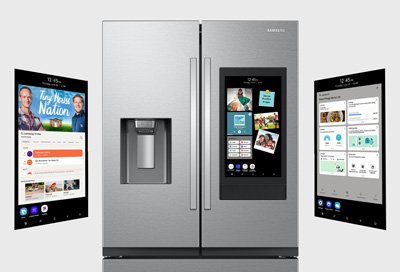
Is your smart fridge acting up or lagging behind on its latest features? You might be surprised to learn that just like your smartphone or computer, your smart fridge also needs regular software updates to ensure it runs smoothly.
Imagine unlocking new features, fixing annoying bugs, and even enhancing its performance with just a few taps. Sounds appealing, right? By updating your smart fridge’s software, you can maximize its functionality and get the most out of your investment. In this guide, you’ll discover easy steps to keep your fridge’s software up to date.
You don’t have to be a tech wizard to follow along; it’s simpler than you might think. Dive in to learn how you can ensure your smart fridge continues to serve you efficiently and effectively.
Importance Of Software Updates
Software updates are very important for a smart fridge. They keep the fridge running smoothly and safely. Updates fix bugs and improve features. New updates can make your fridge smarter. They might improve energy use and save money.
Updates can also protect your fridge from hackers. Hackers can try to enter your smart devices. With updates, your fridge is safer. Always check for new updates regularly. This keeps your fridge up to date and working well.

Credit: eu.community.samsung.com
Checking Current Software Version
Find the control panel on your fridge. Press the menu button. This opens the settings menu. Look for the option named “Settings” or “System”. Tap on it.
Scroll through the settings. Find the “About” section. It might be named differently. Look for “Software Information”. Here, you’ll see your current version. Write it down. It’s important for updates.
Preparing For The Update
Check your Wi-Fi signal strength. Weak signals can interrupt updates. Place the router closer to the fridge if needed. Restart the router to refresh connections. Avoid downloading large files during the update. Ask family not to stream videos. This keeps the internet fast.
Store important files in a safe location. Use cloud services for backup. Photos, recipes, and settings may need protection. Check if your fridge offers built-in backup. Use USB drives if needed. Losing data can be frustrating. Always backup before updates.

Credit: eu.community.samsung.com
Downloading The Update
Connect your smart fridge to Wi-Fi. This is the first step. Open the fridge’s menu. Look for the settings option. There, find the software update section. Choose the option to check for updates. The fridge will search for new updates. If available, start the download. Ensure the Wi-Fi signal is strong. A weak signal can cause issues. Once downloaded, the update installs automatically. Do not turn off the fridge during this process.
Sometimes, Wi-Fi may not work well. You can use a USB drive. Visit the fridge manufacturer’s website. Download the update file on your computer. Save it to a USB drive. Insert the USB into the fridge’s port. Go to the settings menu. Select the update via USB option. The fridge will detect the update file. Follow the on-screen instructions to install. Ensure the USB stays connected until done.
Installing The Update
Begin by pressing the menu button on your fridge. Look for the settings option. Tap on it. You will see the update option. Select it. Read all instructions on the screen. Follow them step by step. Ensure your fridge is connected to the internet. The update might take some time. Be patient. Do not turn off the fridge while updating.
After the update, restart the fridge. Press the power button. Wait for a few seconds. Then, turn it on again. The fridge will load the new software. This process ensures all changes are applied. Check if everything works properly. Enjoy the new features your fridge offers.
Troubleshooting Common Issues
Updating smart fridge software often resolves common issues. Ensure a stable internet connection and access the fridge’s settings menu. Follow on-screen instructions to download and install updates efficiently.
Solving Connectivity Problems
Smart fridges need a strong Wi-Fi connectionto update. Ensure your router is on and close. Check the fridge’s settingsfor network options. Reconnect if the fridge is offline. Restart the router if needed. This can help fix the problem. Use a different device to test Wi-Fi speed. Slow connections can delay updates.
Handling Update Failures
Sometimes updates fail to install. Start by rebooting the fridge. This might solve the issue. Next, check for any pending updatesin the settings. Install them one at a time. Make sure the fridge has enough power. Plug it in if the battery is low. Contact support if the problem continues. They can provide more help.
Benefits Of Keeping Software Updated
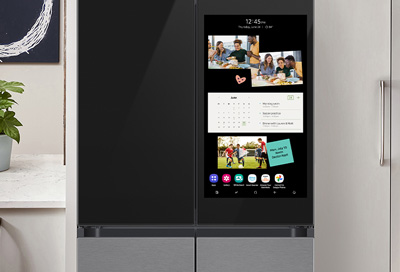
Smart fridges need regular updates to stay safe. New updates fix security holes. Hackers can’t easily break in. Your data stays private and protected. Always check for updates on your fridge. This keeps your family safe.
Updates make the fridge run better and faster. Old software can slow down your fridge. New updates help it work smoothly. This means less waiting for features to load. Your fridge can do more with less power. This saves energy and money.
Credit: www.samsung.com
Frequently Asked Questions
How To Update Samsung Smart Fridge?
Update your Samsung Smart Fridge by connecting it to Wi-Fi, then access settings on the touchscreen. Navigate to “Software Update” and select “Update Now. ” Ensure your fridge remains connected to power and Wi-Fi during the update process. Regular updates enhance features and security.
How Do I Update My Fridge?
Update your fridge by cleaning it thoroughly and checking for software updates. Organize shelves for better efficiency. Replace old parts if necessary. Consider upgrading features like energy-saving modes or smart technology. Check the manufacturer’s website for specific update instructions. Regular maintenance ensures optimal performance and longevity.
Which Apps To Be Downloaded For A Smart Refrigerator?
Download apps like SmartThings for Samsung, LG ThinQ for LG, and Whirlpool mobile app for Whirlpool smart refrigerators. These apps allow you to control settings, monitor usage, and access recipes remotely. Ensure compatibility with your specific refrigerator model for optimal functionality.
How To Update Software On Ge Fridge?
Access the fridge’s settings menu on the control panel. Select “Software Update” and follow on-screen instructions. Ensure a stable internet connection for downloading updates.
Conclusion
Updating your smart fridge software is essential. It boosts performance and security. Follow the steps outlined for a smooth process. Regular updates help your fridge work efficiently. They also add new features and fix bugs. Keep your fridge connected to the internet.
This ensures you receive updates promptly. Check the manufacturer’s website for support if needed. Maintaining your fridge software saves you time and hassle. It also extends the appliance’s lifespan. Make it a routine task. Your smart fridge will thank you with better functionality.