
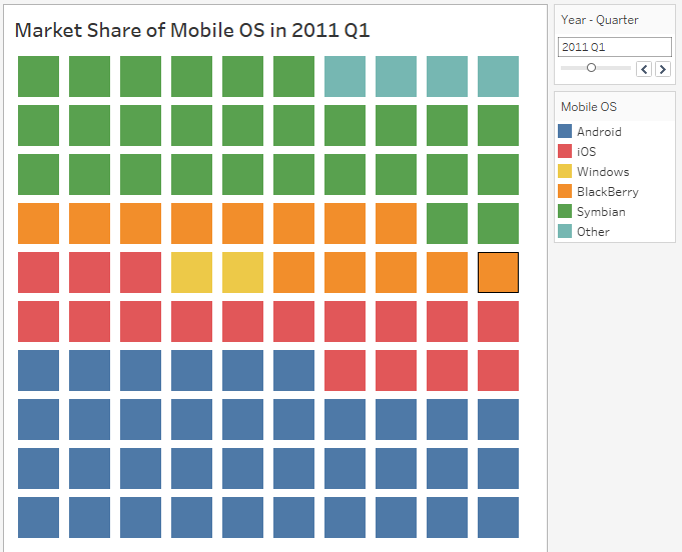
Have you ever wanted to present your data in a way that’s both eye-catching and easy to understand? A waffle chart might be just what you need.
It turns numbers into a simple grid of squares, making it easier for your audience to see proportions at a glance. If you use Tableau, creating a waffle chart might seem tricky at first, but don’t worry—you’re about to learn a step-by-step method that anyone can follow.
By the end of this article, you’ll be able to build your own waffle chart that highlights your data clearly and effectively. Ready to make your data stand out? Let’s dive in.

Credit: vigneshs4499.medium.com
What Is A Waffle Chart
A waffle chart is a visual tool used to show parts of a whole. It looks like a grid made of small squares.
Each square in the grid represents a percentage or a portion of the total. This makes it easy to see proportions at a glance.
Purpose Of A Waffle Chart
Waffle charts help to display simple percentage data clearly. They are good for showing how much one part contributes to the total.
How Waffle Charts Work
The chart uses a grid, usually 10 by 10 squares, to show 100 parts. Each filled square equals 1% of the data.
- Squares fill up based on the data value
- Colors can show different categories
- The grid size can change to fit data needs
Advantages Of Using Waffle Charts
Waffle charts make it easy to compare parts and see data proportions quickly. They are simple and clear to read.
| Advantage | Explanation |
| Visual Clarity | Easy to understand at a glance |
| Simple Design | Uses small squares for clear parts |
| Effective Comparison | Shows parts of a whole side by side |

Credit: medium.com
When To Use Waffle Charts
Waffle charts show parts of a whole in a grid format. They use small squares to represent percentages or counts.
This chart type is easy to read and helps compare proportions clearly. It works well when you want a simple visual of data parts.
Showing Percentages Clearly
Use waffle charts to display percentages in a way that is easy to understand. Each square can represent one percent or another unit.
Comparing Small Differences
Waffle charts help highlight small differences between groups. You can see slight changes in size or amount by counting the squares.
Visualizing Parts Of A Whole
When you want to show how parts make up a whole, waffle charts are useful. They break down data into equal units and show each part clearly.
- Best for simple data sets with few categories
- Works well with percentages or counts
- Easy for audiences to grasp proportions quickly
- Good alternative to pie charts when you want a grid layout
Using Waffle Charts In Presentations
Waffle charts make presentations more engaging. They provide a clear picture of data without overwhelming viewers.
| Use Case | Reason |
| Survey Results | Shows percentage of responses |
| Market Share | Compares company sizes |
| Budget Breakdown | Displays parts of total spending |
| Task Completion | Visualizes progress in projects |
Preparing Data For Tableau
Creating a waffle chart in Tableau needs clean and organized data. The data should fit the grid layout of the waffle chart.
Before you start, prepare your data so Tableau can use it easily. This makes building the chart faster and clearer.
Structure Your Data In Percentages
A waffle chart shows parts of a whole using squares. Use percentages or fractions to represent these parts.
Each category must have a percentage value that sums to 100%. This helps to fill the grid correctly.
- List categories in one column
- List percentages in another column
- Ensure total percentages add up to 100%
Create A Grid For The Waffle Chart
A waffle chart looks like a grid of small squares. You need to create rows and columns for each square.
Make a data table with numbers for each row and column. This forms the base grid for Tableau to plot.
- Decide the number of squares (for example, 10×10 grid)
- Create a list of row numbers from 1 to grid size
- Create a list of column numbers from 1 to grid size
Assign Values To Each Grid Square
Link each grid square to a category based on its percentage. Each square represents a part of the total.
Use calculations to fill squares with the right category color in Tableau.
- Multiply percentage by total squares to find squares per category
- Label squares in order to match categories
- Prepare a column with category labels for each square
Format Data For Tableau Import
Save your data in a file type that Tableau can read easily. CSV or Excel files work well.
Check your file for any errors. Clear headers and no extra spaces help Tableau import smoothly.
- Use clear column names like Category, Row, Column
- Keep data consistent and clean
- Remove empty rows and columns
Setting Up The Grid
Creating a waffle chart in Tableau starts with setting up the grid. The grid acts as the base for your chart. It divides the space into equal squares.
This grid will represent your data points. You must carefully configure rows and columns to form a perfect square layout.
Create The Grid Data
You need a data set that defines each square in the grid. Usually, it has two fields: one for rows and one for columns. Both fields should have numbers from 1 to 10 for a 10×10 grid.
These numbers help Tableau plot each square in the correct position. You can create this data manually or use a calculated field.
Build The Grid In Tableau
Drag the column field to the Columns shelf. Drag the row field to the Rows shelf. This will create a grid of points.
Next, convert these points into squares by changing the mark type to shape or square. Adjust the size to fill the grid evenly.
- Use discrete fields for rows and columns
- Set the mark type to square
- Adjust the size to avoid gaps
- Sort rows and columns in ascending order
Align The Grid Correctly
Check the grid alignment by looking at the axes. Both axes should start at 1 and end at 10 for a 10×10 grid. If they do not, fix the axis range manually.
| Axis | Start | End |
| Columns | 1 | 10 |
| Rows | 1 | 10 |
Reverse the row axis if needed to have the origin at the bottom left. This makes the grid look like a typical waffle chart layout.
Creating The Waffle Chart
A waffle chart shows data as a grid of squares. Each square represents a part of the total.
Tableau can build waffle charts by making a base grid and adding data and colors.
Building The Base Grid
Start by creating a grid with rows and columns. This grid will hold the squares for your data.
- Create a calculated field for rows using a range of numbers.
- Create a similar calculated field for columns.
- Place these fields on the Rows and Columns shelves to form a grid.
- Change the mark type to square to make the grid visible.
- Adjust the size of the squares to fill the space evenly.
Adding Data Values
Next, add data to the grid squares to show parts of the whole. This shows how many squares to fill.
Use a calculated field to assign each square a value based on the data. Then place this field on the color or detail shelf.
| Field | Description |
| Data Value | Number representing each unit to fill |
| Grid Position | Coordinates of each square in the grid |
| Color Indicator | Shows category or value by color |
Customizing Colors
Colors help make the chart easy to understand. Assign colors to different data parts.
- Use distinct colors for each category or value.
- Pick colors that contrast well to improve readability.
- Adjust transparency if needed to show overlaps.
- Use Tableau’s color palettes or create custom ones.
Enhancing The Chart
Making a waffle chart in Tableau is simple, but improving it helps viewers understand data better.
This section explains how to add labels, use tooltips, and adjust size and layout for clearer charts.
Adding Labels
Labels show exact values or percentages inside the waffle chart squares. They help users see details at a glance.
- Use text marks in Tableau to add numbers inside cells.
- Choose a clear font size so labels do not overlap.
- Color labels for contrast against the background squares.
- Place labels strategically to avoid clutter.
Incorporating Tooltips
Tooltips provide extra information when users hover over parts of the chart. They add context without crowding the view.
In Tableau, customize tooltips by adding relevant data fields and clear text.
| Tooltip Element | Description |
|---|---|
| Title | Name of the data category |
| Value | Number or percentage shown |
| Additional Info | Any extra details like date or source |
Adjusting Size And Layout
Changing the size and layout of the waffle chart improves how data fits and looks on the screen.
- Resize the grid to balance between detail and space.
- Adjust the number of rows and columns to suit your data.
- Use consistent spacing between squares for neatness.
- Align the chart within the dashboard for easy viewing.
Common Mistakes To Avoid
Creating a waffle chart in Tableau can be tricky if you miss some key points. Avoiding common errors helps your chart look clear and accurate.
This guide points out typical mistakes to watch for when making waffle charts. Fixing these will improve your data visualization.
Ignoring Proper Data Preparation
Many users forget to structure their data correctly for waffle charts. The data must be broken down into small units that fit into the grid layout.
Without proper data preparation, the waffle chart will not represent values accurately.
Using Incorrect Grid Size
The grid size defines the number of squares in the waffle chart. Picking the wrong size can distort the data’s appearance.
- Too few squares reduce detail and accuracy.
- Too many squares make the chart cluttered and hard to read.
- Choose a grid size that matches your data scale well.
Forgetting To Use Color Wisely
Colors help viewers understand the chart quickly. Avoid using too many colors or colors that are hard to distinguish.
Keep your color choices simple and consistent to improve clarity.
Skipping Labels And Legends
Labels and legends explain what each part of the chart means. Skipping them can confuse the audience.
| Common Label Mistakes | How to Fix |
| Missing labels on squares | Add data labels or use tooltips |
| No legend explaining colors | Include a clear legend with color meanings |
| Overlapping text | Adjust font size or spacing |
Overcomplicating The Chart Design
Some users add too many effects or details that distract from the main data message.
Tip:Keep waffle charts simple. Use clean lines, limited colors, and clear labels.
Exporting And Sharing Your Chart
After creating a waffle chart in Tableau, you will want to share it with others. Exporting your chart lets you use it outside Tableau. Sharing helps your team or audience see your data easily.
This section explains how to export your waffle chart and share it in different ways.
Exporting As An Image
You can save your waffle chart as an image file. This lets you use it in reports, emails, or presentations.
To export, go to the Worksheet menu and choose “Export” then “Image”. Pick the image size and format you want. Click “Save” to download the image.
Exporting As A Pdf
Exporting your waffle chart as a PDF is useful for printing or sharing documents. It keeps the quality high and looks professional.
Go to the File menu and select “Print to PDF”. Choose your page settings and save the file. Your chart will be saved as a PDF document.
Publishing To Tableau Public Or Server
Tableau Public and Tableau Server let you share interactive charts online. This helps others explore your waffle chart in detail.
Click “Server” in the menu, then “Publish Workbook”. Choose your destination and set permissions. Your chart will be available online for viewers.
Sharing Via Tableau Reader
Tableau Reader is a free app for viewing Tableau files. You can send your workbook to someone who has Tableau Reader installed.
Save your workbook as a .twbx file. Share this file by email or cloud storage. The receiver can open it and interact with your waffle chart.
Embedding Your Chart In Websites
You can embed your waffle chart into a website or blog. This lets visitors see the chart directly on the page.
Publish your chart to Tableau Public or Server first. Then copy the embed code and paste it into your site’s HTML editor.

Credit: salesforcefaqs.com
Frequently Asked Questions
What Is A Waffle Chart In Tableau?
A waffle chart is a grid-based visualization showing progress or proportions. Tableau uses shapes to fill squares. It offers a clear, visual way to represent percentages and parts of a whole, making data easier to interpret.
How Do I Create A Waffle Chart In Tableau?
Start by preparing your data with percentage values. Use calculated fields to map data into a 10×10 grid. Assign shapes or colors for filled squares. Finally, use Tableau’s marks and formatting options to build the waffle chart.
Why Use A Waffle Chart Over Other Charts?
Waffle charts provide an intuitive, visual representation of percentages. They simplify complex data into a clear grid format. This makes it easier to compare parts of a whole, especially for progress tracking or survey results.
Can I Customize Colors In Tableau Waffle Charts?
Yes, Tableau allows full color customization. You can assign colors to represent different categories or progress stages. Custom colors improve readability and help highlight important data points in the waffle chart.
Conclusion
Waffle charts in Tableau show data clearly and simply. You create them by building a grid and coloring squares. This makes it easy to compare parts of a whole. Practice these steps to improve your skills. Use waffle charts to share data stories better.
They help readers see patterns quickly and easily. Keep experimenting to find what works best. Visual data becomes more fun and useful this way. Try making your own waffle chart today!